
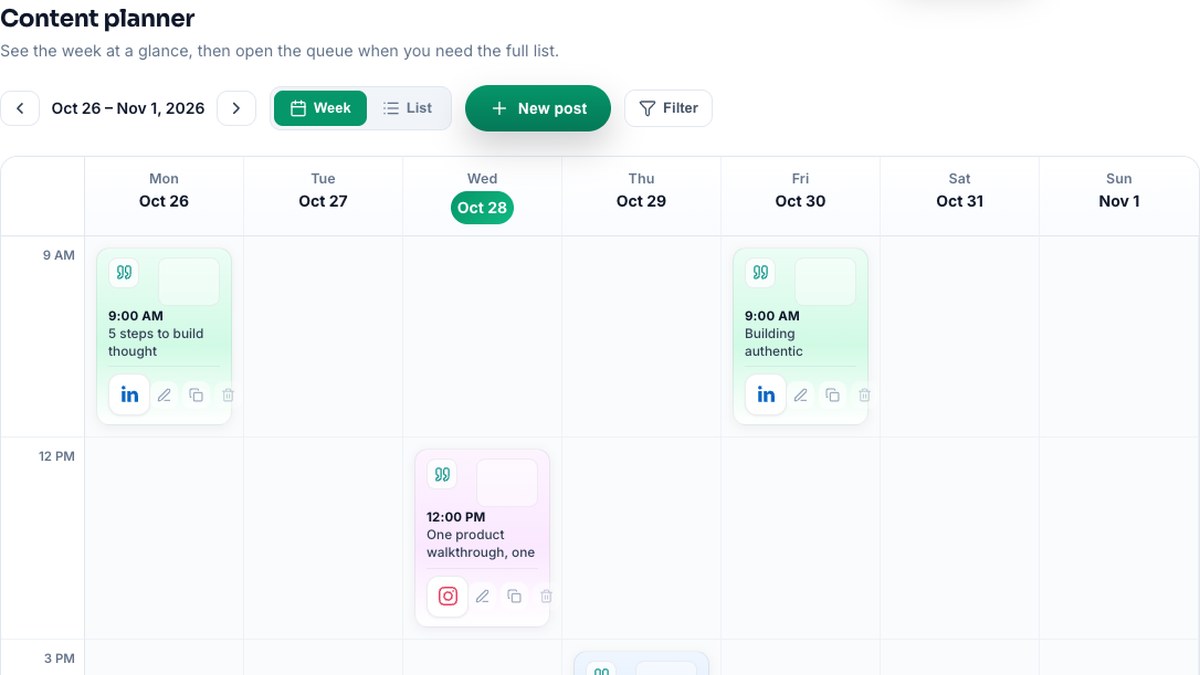
Scheduling LinkedIn posts in advance is one of the fastest ways to stay visible without posting in real time every day. In 2026, the best setup is a single place where you connect LinkedIn once, draft or generate copy, and set publish times from one calendar. Here’s how to do it with Athenous. Screenshots are representative—labels may vary slightly by release.
Connect your LinkedIn account
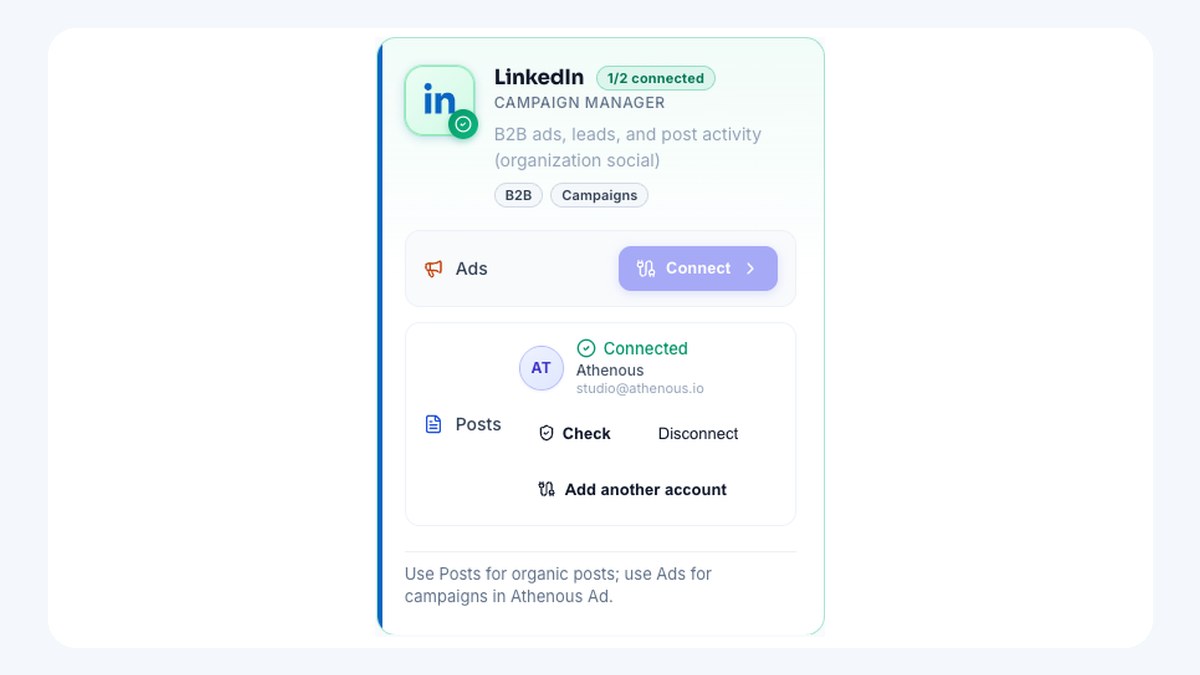
In Athenous, open Connections and add your LinkedIn account. Complete the authorization so the app can publish for you. Once connected, LinkedIn shows up in Post whenever you create or schedule content—no re-auth for every post.
Create your LinkedIn post
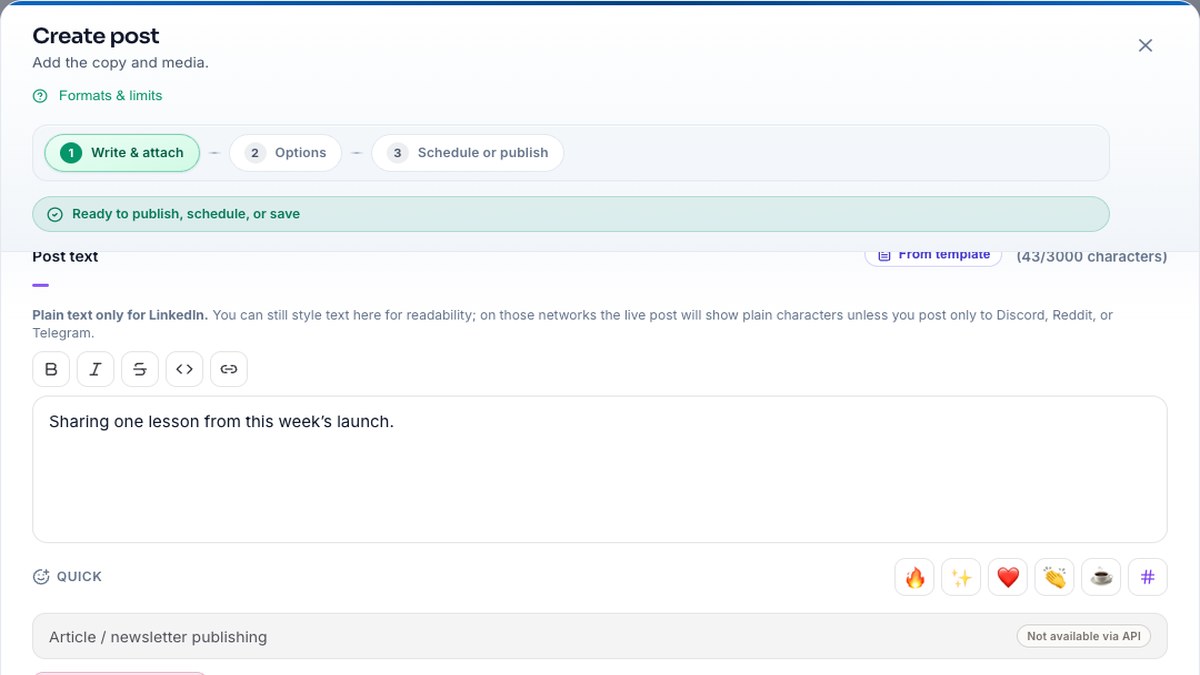
In Post, create a new post, choose LinkedIn, and add your text (plus media if you need it). For first drafts, use Athenous Lab Content Generation with “LinkedIn” selected so the AI suggests professional, platform-appropriate copy—then paste into Post and tighten voice, proof, and CTA.
Set date and time
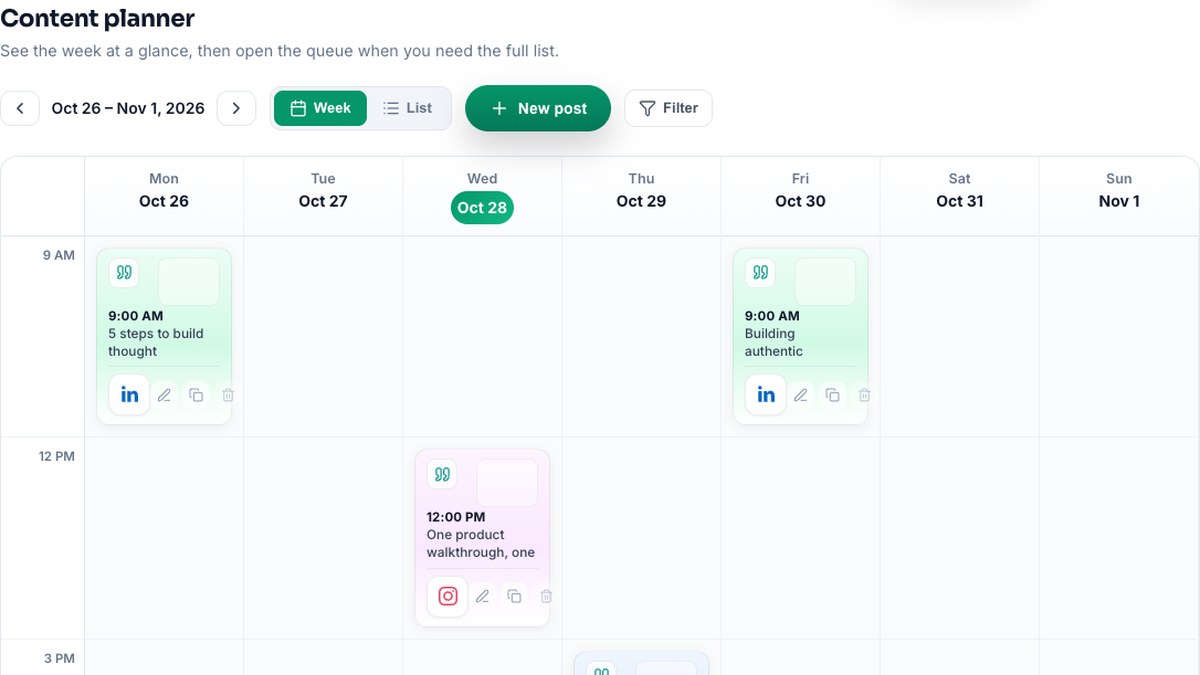
Pick the date and time you want the post to go live. Prefer your audience’s peak windows when you know them (see best time to post on LinkedIn in 2026). The Post calendar shows scheduled LinkedIn alongside Instagram and Facebook so you can space posts and keep a consistent rhythm. Confirm schedule—and you’re done.
Stay consistent without the daily grind
Batching a week or two of LinkedIn posts in one sitting cuts context-switching and keeps your profile active. Use Lab for hooks and variants, Post for the queue, then block short windows after go-live to reply. For copy craft, see how to generate LinkedIn posts with AI; for a dual-channel rhythm, LinkedIn and Instagram workflow in Athenous.
Frequently asked questions
Can I schedule LinkedIn posts in advance in 2026?
Yes. Connect LinkedIn once, compose in Post (or draft in Lab), set a future date and time, and the post publishes automatically—while you stay free to engage when it goes live.
Do I need the LinkedIn native scheduler?
No. Native scheduling is fine for LinkedIn alone. A multi-channel calendar is better when LinkedIn shares the week with Instagram, Facebook, and other networks so you are not juggling separate queues.
How far ahead should I schedule LinkedIn posts?
Most teams batch one to two weeks so the queue stays fresh and you can still insert timely posts. Use the week view to avoid stacking everything on one morning.
Should I still engage after a scheduled post goes live?
Yes. Scheduling covers consistency; jumping on comments in the first hour still helps reach. Treat the calendar as coverage, not a substitute for conversation.
Can AI help write LinkedIn posts before I schedule them?
Yes. In Athenous Lab, run Content Generation with LinkedIn selected for a first draft, then edit specifics in Post before you lock the publish time.
Try Athenous for free
Connect LinkedIn, generate copy in Lab, and schedule in Post. Start with a free trial—no credit card required.
Start free trial